How to Set Up DMARC for Klaviyo
Step-by-step guide to configuring SPF, DKIM, and DMARC for Klaviyo email marketing. Includes DNS records and troubleshooting.
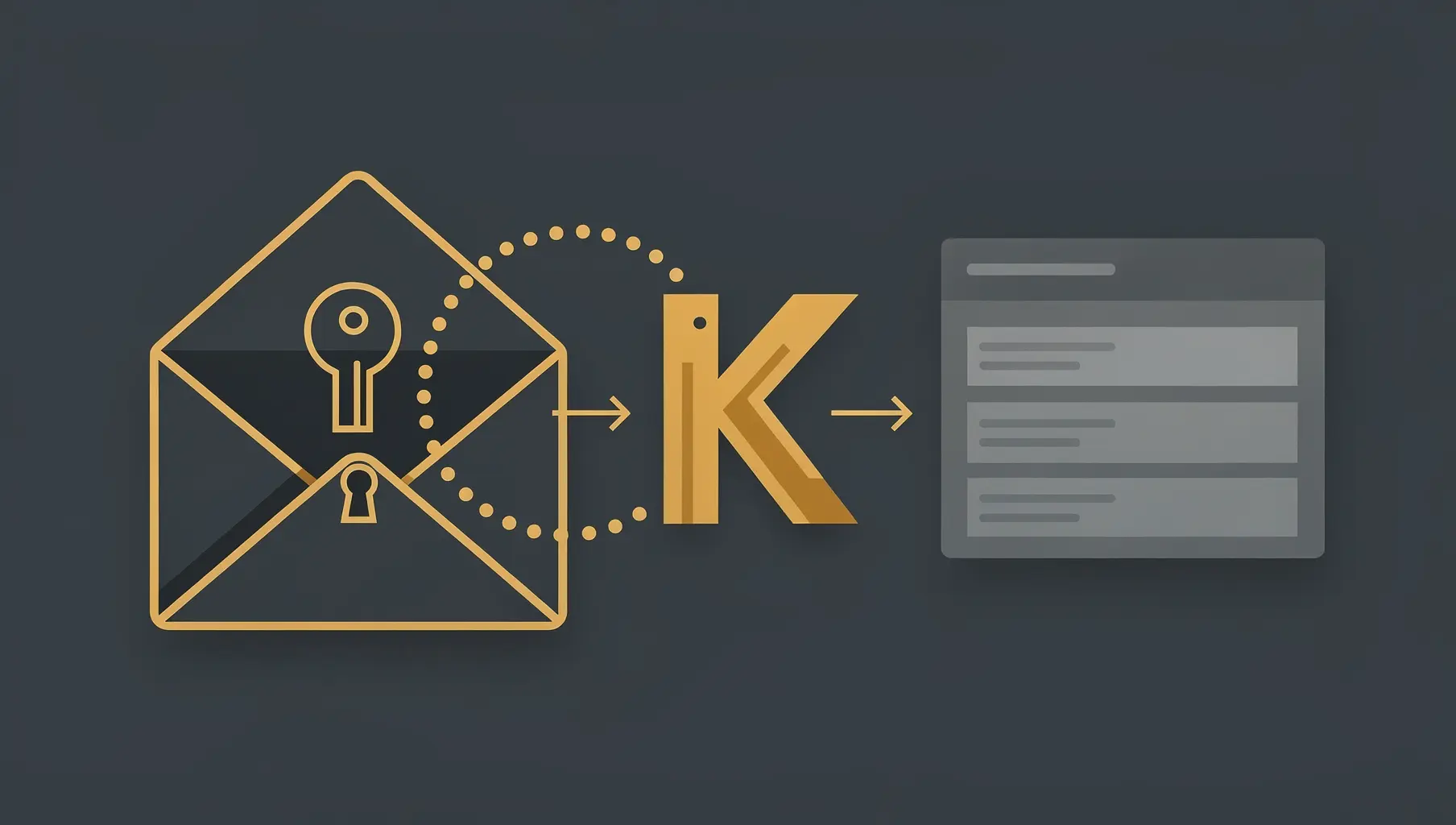
Why Your Klaviyo Emails Need DMARC
Klaviyo is one of the most popular email marketing platforms for e-commerce. If you send marketing or transactional email through Klaviyo, those emails go out under your domain name. That’s powerful — your brand carries the message.
But here’s the catch: without proper authentication, your Klaviyo emails will fail DMARC alignment. Even if Klaviyo delivers them just fine, mailbox providers see the sender domain as yours but the email infrastructure as Klaviyo’s. The authentication checks pass, but alignment fails. DMARC fails.
When you move from monitoring (p=none) to enforcement (p=quarantine or p=reject), these misaligned emails get quarantined or blocked. Your customers never see them.
This guide walks you through configuring SPF, DKIM, and DMARC so your Klaviyo emails pass authentication with alignment. You’ll know exactly what’s happening with your email authentication, and you can confidently move toward enforcement.
What You Need to Get Started
Before you begin, gather these things:
- A Klaviyo account on a paid plan (free accounts don’t support custom sending domains)
- Access to your domain’s DNS management (wherever your domain is registered or hosted — Cloudflare, Route 53, GoDaddy, Namecheap, etc.)
- An existing DMARC record (even a basic
p=nonerecord to start; we’ll build on it)
If you don’t have a DMARC record yet, here’s a minimal one to add:
_dmarc.yourdomain.com. TXT "v=DMARC1; p=none; rua=mailto:[email protected];"Replace yourdomain.com with your actual domain and set rua=mailto to an email address you can access. This sends DMARC aggregate reports to you weekly. Reports show exactly which email sources align with your domain — invaluable for troubleshooting.
Step 1: Set Up a Dedicated Sending Domain in Klaviyo
By default, Klaviyo sends email through its shared infrastructure. To align authentication with your domain, you need to configure a custom sending domain.
In Klaviyo:
- Go to Settings (gear icon, bottom left)
- Select Email from the left sidebar
- Click Sending Domain
- Click Add Domain
- Enter your domain name (e.g.,
mail.yourdomain.comor justyourdomain.com)
Klaviyo will generate DNS records for you to publish. You’ll see records for:
- CNAME (for DKIM signing)
- MX record (if you’re routing mail through Klaviyo; optional)
- TXT record (for domain verification)
Copy these records. You’ll add them to your DNS provider next.
Step 2: Set Up DKIM for Klaviyo
DKIM (DomainKeys Identified Mail) cryptographically signs every email so mailbox providers can verify it came from you. Klaviyo provides a CNAME record that points to Klaviyo’s signing infrastructure.
In your DNS provider:
- Find the DNS records section (exact location varies; look for “DNS Management,” “DNS Records,” or “Zone File”)
- Add the CNAME record Klaviyo gave you
It will look something like:
[selector]._domainkey.yourdomain.com. CNAME [selector].dkim.klaviyo.com.The selector is usually something like k1 or default. Klaviyo will tell you the exact value.
- Save the record and wait for propagation
DNS propagation can take up to 48 hours, but usually happens in minutes. You can check status using a DNS lookup tool:
- MXToolbox — enter the full CNAME name and check if it resolves
- Google Domains DNS Checker — if your domain is with Google
Back in Klaviyo:
Once the CNAME is live, go back to Settings > Email > Sending Domain and click Verify. Klaviyo will check if the record exists and is correct.
When DKIM is verified, Klaviyo signs every email with your domain’s DKIM key. This is critical: your domain now has cryptographic proof it sent the email. DKIM alignment is achieved.
Step 3: Configure SPF for Klaviyo
SPF (Sender Policy Framework) tells mailbox providers which IP addresses are authorized to send email on behalf of your domain.
Check if you already have an SPF record:
Most domains have at least a basic SPF record. In your DNS provider, search for a record starting with v=spf1. If you find one, note it down.
Adding Klaviyo to SPF:
Klaviyo typically requires an SPF include if you’re using a dedicated sending domain. The include looks like:
include:klaviyo.comIf you already have an SPF record, add this include to it. For example, if your SPF currently is:
v=spf1 include:sendgrid.net ~allUpdate it to:
v=spf1 include:sendgrid.net include:klaviyo.com ~allIf you don’t have an SPF record, create one:
v=spf1 include:klaviyo.com ~allSave the updated record.
Important: The 10-Lookup Limit
SPF has a hard limit of 10 DNS lookups per record. Each include: and a: and mx: mechanism counts as one. If you hit the limit, SPF will fail silently (treated as ~all, which is a soft fail).
Count your current lookups:
Use MXToolbox SPF Check. Enter your domain and it shows you how many lookups you’re using. If you’re close to 10 and adding Klaviyo pushes you over, you’ll need to consolidate SPF records using CNAME flattening (advanced) or use fewer include statements.
For most businesses, adding one or two new senders doesn’t exceed the limit. Just check.
Step 4: Verify Everything Works
Now comes the moment of truth: does it all work together?
Send a test email:
- Create a test campaign or transactional email in Klaviyo
- Send it to an email address you can access
- Open the email and view the full message headers
What to look for:
In the email headers, you’re checking three things:
-
DKIM signature: Look for a line starting with
DKIM-Signature:. Check thed=field. It should be your domain, not Klaviyo’s:d=yourdomain.com -
SPF pass: Look for
Received-SPF:or check the Authentication-Results header:Authentication-Results: ... spf=pass (domain=yourdomain.com) ... -
DMARC alignment: This is the big one. The From address should match your domain, DKIM should sign with your domain, and SPF should authorize your domain’s IPs. If all three align, DMARC passes.
Use DMARC reports to confirm:
The DMARC aggregate reports you set up earlier will arrive weekly at the email address you specified. Open one and look for rows showing yourdomain.com as both the From domain and the Header From Domain (for DKIM alignment). The dkim_align and spf_align columns should show s (strict alignment) or r (relaxed alignment). Either means alignment passed.
If you see Disposition: none and dkim_align: s, you’re passing DMARC alignment in monitoring mode.
Common Issues and How to Fix Them
DNS propagation delays
If Klaviyo won’t verify your DKIM or SPF isn’t resolving, DNS may still be propagating. Wait a few hours and try again. If it’s been 48 hours, check that you added the record to the correct DNS provider (not a cached or old one).
CNAME vs. TXT confusion
Klaviyo gives you a CNAME for DKIM. Don’t add it as a TXT record. CNAME records are different from TXT records. Use exactly what Klaviyo specifies. If you’re unsure, check your DNS provider’s documentation for how to add a CNAME.
Multiple Klaviyo accounts on the same domain
If your company has more than one Klaviyo account and both send from the same domain, coordination matters. Each account needs its own subdomain for sending (e.g., mail1.yourdomain.com, mail2.yourdomain.com), or they need to use the same sending domain with separate DKIM selectors. Talk to Klaviyo support to configure this correctly.
SPF lookup limit exceeded
If adding Klaviyo pushes your SPF lookups to 10+, SPF will fail. Audit your current includes (every service that sends email from your domain). Some you might be able to remove. For others, see if they support CNAME SPF flattening, which counts as fewer lookups. Mailchimp and some others support this.
Shared IP vs. dedicated IP implications
By default, Klaviyo uses shared sending IPs. These are batched with mail from other Klaviyo customers. It’s not a problem for authentication, but it can affect deliverability if other users abuse shared IPs. For mission-critical email, consider Klaviyo’s dedicated IP add-on. Even with a shared IP, proper DMARC alignment is essential.
Why Ongoing Monitoring Matters
You’ve set up Klaviyo’s authentication correctly. Great. But things change.
Maybe Klaviyo updates their infrastructure and you need to refresh DKIM records. Maybe a colleague adds a new email service and breaks your SPF. Maybe someone misconfigures a Klaviyo flow and emails go out from the wrong domain. You won’t know unless you’re watching.
Set up monitoring:
- DMARC reports — Review them weekly. Look for drops in alignment or new sending sources you don’t recognize.
- Regular verification — Send test emails from Klaviyo once a month and check headers.
- Use a DMARC monitoring platform — This is where visibility really matters.
A good monitoring platform shows you:
- Which sources are sending from your domain
- Which are aligned and which are failing
- Exactly which emails are failing and why
- Actionable remediation (not just alerts)
Continuous monitoring ensures alignment stays strong and you catch issues before they affect deliverability.
Ready for Enforcement
Once you’ve verified alignment and run in monitoring mode (p=none) for at least a week, you’re ready to move toward enforcement.
Update your DMARC record to:
_dmarc.yourdomain.com. TXT "v=DMARC1; p=quarantine; rua=mailto:[email protected]; ruf=mailto:[email protected];"Start with p=quarantine (suspicious emails go to spam) rather than p=reject (hard blocks). Monitor for a few weeks. Once you’re confident, move to p=reject.
Your Klaviyo emails will land in the inbox because they’re properly authenticated. Malicious actors trying to spoof your domain will fail DMARC and get quarantined.
Related Articles

April 2026
How to Set Up DMARC for Salesforce
Step-by-step guide to configuring SPF, DKIM, and DMARC for Salesforce email sends. Includes DNS records, Email Relay, and troubleshooting.

January 2026
How to Authenticate Email and Reach the Inbox
A practical guide to setting up SPF, DKIM, and DMARC so your emails actually get delivered. No fluff, just the steps that matter.

January 2026
5 Key Benefits of Email Authentication
Why SPF, DKIM, and DMARC matter for security, deliverability, and brand protection. A practical guide for businesses of all sizes.
Ready to implement this?
Verkh helps you monitor DMARC, identify issues, and reach enforcement. Start free.
Start Free